Forwarding support email
Forward the support email you already get and every message becomes a triaged ticket. Set it up once — your own inbox is untouched, forwarding just sends a copy.
How it works
- Your project has an inbound address:
your-token@inbound.triagely.net. - You add a rule in your mail app that forwards support mail to it.
- Triagely filters out the noise (auto-replies, newsletters, spam) and turns the rest into ranked, deduplicated tickets.
Step 1 — Find your address
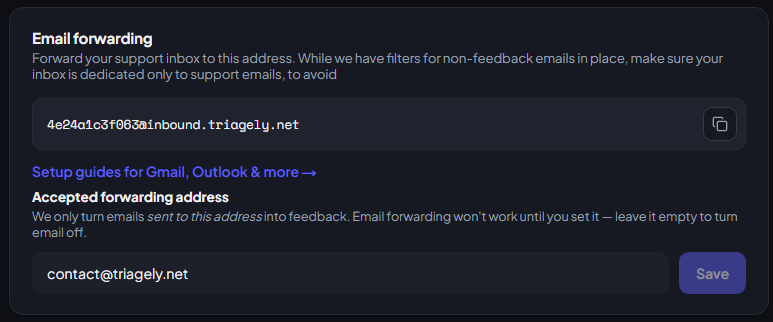
Settings → Email forwarding shows your address with a copy button:
your-token@inbound.triagely.net
It's stable and not a secret — share it freely. You'll need it in Step 3.
Step 2 — Turn it on (required)
In the same place, enter the address you forward from (e.g.
support@yourcompany.com).
⚠️ Email stays off until you do this. Triagely only accepts mail originally sent to an address you've listed. Empty = nothing comes through — the #1 reason forwarding "isn't working."
Step 3 — Add a forwarding rule
Find your provider below. Menu names shift occasionally, but the path holds.
Gmail / Google Workspace
- Gmail → gear icon → See all settings → Forwarding and POP/IMAP.
- Add a forwarding address → paste your
…@inbound.triagely.netaddress → confirm. - Verify it. Gmail emails a confirmation code + link to that address. Find it on
your Feedback page under Mail verification, then enter the code (or open
the link) back in Gmail.
- It isn't instant — give it 1–2 minutes and refresh the page. Works before or after Step 2.
- Choose Forward a copy of incoming mail to your Triagely address, and save.

💡 Forward only your support mail — not your whole inbox
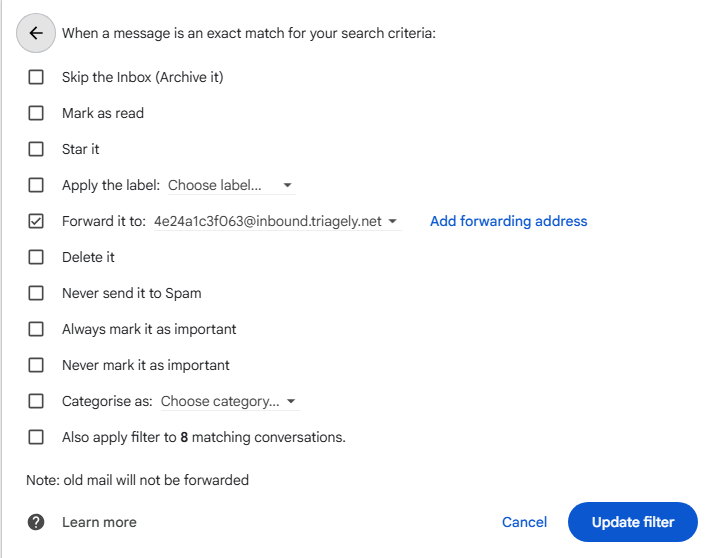
Forwarding everything floods your board with personal and automated mail. Forward selectively with a filter instead:
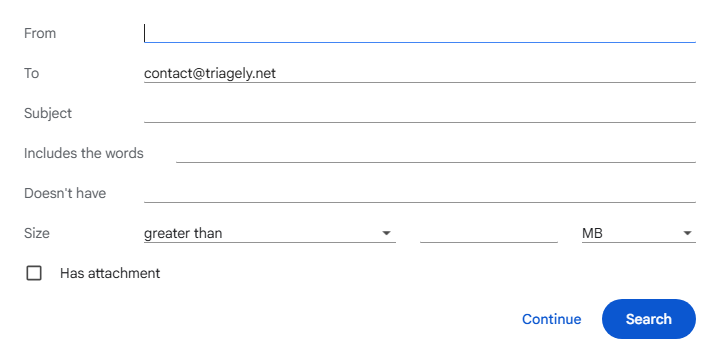
- Settings → Filters and Blocked Addresses → Create a new filter.
- In To, enter your support address → Create filter.
- Tick Forward it to → your Triagely address.
Works for aliases too —
support@,help@, or ayou+support@gmail.comaddress: filter on the alias and only those messages forward. Everything else stays put.
Confirmation still not under Mail verification after a few minutes? Email contact@triagely.net and we'll help you with it.
Outlook.com / Microsoft 365
- Outlook web → Settings → Mail → Forwarding.
- Enable forwarding, enter your
…@inbound.triagely.netaddress, keep Keep a copy of forwarded messages on, and save. No confirmation step.
Shared mailbox or tighter control? A 365 admin can add a mail flow rule (Exchange admin center → Mail flow → Rules) to redirect or BCC support mail to the address.
Apple iCloud Mail
- icloud.com → Mail → gear/Settings → Preferences → General.
- Tick Forward my email to, enter your
…@inbound.triagely.netaddress, keep a copy, then Done.
iCloud forwards everything, so it's best for a support-only inbox.
Zoho Mail
- Settings → Mail Accounts → your account → Email Forwarding → Add Email
Address → your
…@inbound.triagely.netaddress. - Verify it. Zoho emails a confirmation code; find it under Mail verification on your Feedback page (wait 1–2 min, refresh), then enter it in Zoho.
- To forward selectively, use Settings → Filters rather than forwarding everything.
Any other provider
- Open your provider's forwarding or filter/rule setting.
- Set your
…@inbound.triagely.netaddress as the destination. - Prefer a filter so only support mail forwards.
- If asked to confirm the address, find the code under Mail verification on your Feedback page (wait 1–2 min, refresh — it isn't instant).
Step 4 — Test it
Email your support address from another account. It should hit your Feedback page within a minute, then become a ticket.
Troubleshooting
- Nothing showing up? Check Step 2 — the forward-from address must match where mail is originally sent (not your personal address). Use a fresh message, not a reply to an old thread.
- Some emails never arrive. By design: auto-replies, newsletters/list mail, and spam are dropped so they don't clutter your tickets.
- Something's in "Needs review." Triagely wasn't sure it was real feedback (e.g. a brand-new sender). Approve or dismiss it there — and optionally trust that sender going forward.
- Attachments are ignored for now, and very large emails (several MB) may be skipped.
Need a hand? Email contact@triagely.net.